Download an article
Download any finished article and publish it yourself, or hand it to someone who will.
Where to download
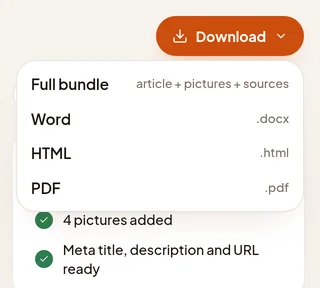
- On the article's page: press Download at the top and choose Full bundle, Word, HTML or PDF.
- On the calendar: open the article's day. Under Download, choose Word, HTML, PDF or Everything (.zip).
What each file holds
- Word (.docx): the meta title, meta description and URL at the top, then the article with its headings, links, lists, tables and pictures with their alt text.
- HTML (.html): one page that opens on its own, with the pictures inside it, and the meta title and description in its head.
- PDF (.pdf): for reading and sharing.
- Full bundle or Everything (.zip): one folder named after the article's URL, holding the article as Markdown, HTML, Word and PDF, its pictures, a list of the sources, and a metadata file with the titles, the description, the URL and each picture's alt text.
The Markdown is in the ZIP.
Publishing it yourself
- Open the article and choose Details. Copy the Meta title, Meta description and URL with Copy.
- Publish the article on your site.
- Back on the article's page, under Publication, enter the address in URL on your domain and the date in Published on, then press Save.
Once you save the address, ThirdDraft asks Google to index the article, where Search Console is connected. To change the address or the day later, press Edit beside Publication.
With Search Console connected, the Performance page then measures the article. See Performance.