Finished articles, where you work.
Connect your blog, download the files, or send articles to your own code. Each website can send every finished article to more than one place.
One free article on your own site, no card.
Choose when an article is sent
Send finished work automatically
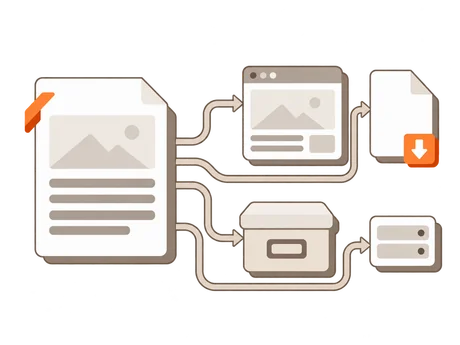
Automatic publishing is on for a new website. Each finished article goes to every place you connect. For each place, you choose if it arrives published or as a draft.
Approve before sending
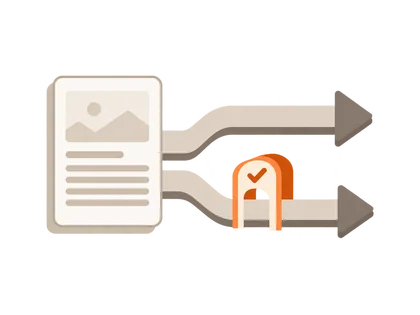
Turn Automatic publishing off and finished articles wait for your approval in ThirdDraft. You can download any finished article either way, and Save as draft sends it to your CMS for you to publish there.

Connect your CMS
WordPress connects through our plugin; the others with access you create in your CMS. Add them while you add your website, or later on its Publishing page.
WordPress
Install our plugin and connect it from Settings → ThirdDraft. Each article becomes a native post, its pictures in your Media Library and your SEO plugin’s fields filled. Choose Publish or Save as draft.
You need: WordPress 5.6 or later, PHP 7.2 or later and HTTPS.
See the WordPress pluginShopify
Each article goes to a blog on your store, with its pictures in your store’s Files and its SEO title and description. Choose Publish or Save as draft.
You need: An app you create in Shopify’s Dev Dashboard, as the store’s owner or staff allowed to develop apps, installed on your store.
Wix
Each article becomes a post on your Wix blog, with its pictures in your Media Manager. Choose Publish or Save as draft.
You need: An API key made in the site owner’s Wix account, with Wix Blog and site media permissions, and your Site ID. Wix Blog must be on the site.
Webflow
Each article becomes an item in a CMS collection on your site, with its pictures in your Assets. ThirdDraft fills the collection’s fields: the text, the pictures, the SEO title and description. It asks only where two fields would fit. Choose Publish or Save as draft.
You need: A site API token with CMS and Assets read and write and Sites read-only, and a collection with a rich text field.
Framer
Each article becomes an item in a CMS collection of your Framer project, its fields filled as on Webflow and its pictures uploaded to Framer.
Save as draft is the default: Framer’s Publish publishes the whole project, with any changes nobody has published yet.
You need: A project API key, made by someone with the Content permission (and Deploy, for Publish), and a collection with a formatted text field.
HubSpot
Each article becomes a post on your HubSpot blog, with its pictures in your account’s files. Choose Publish or Save as draft.
You need: A service key with the content and files.write scopes, on Content Hub Starter or Marketing Hub Professional or higher.
Ghost
Each article becomes a post on your Ghost site, with its pictures uploaded to Ghost. Choose Publish or Save as draft.
You need: A custom integration’s Admin API key and API URL, from Settings → Integrations in Ghost Admin.
Notion
Each article becomes a page in the Notion database your site builder reads, with its pictures uploaded to Notion. ThirdDraft fills the database’s properties and asks only where two would fit.
A database with a published checkbox or status lets you choose Publish or Save as draft. Otherwise each page is published as it’s added.
You need: An API token from a Notion connection, made by a workspace owner, and your database shared with that connection.
Download the files
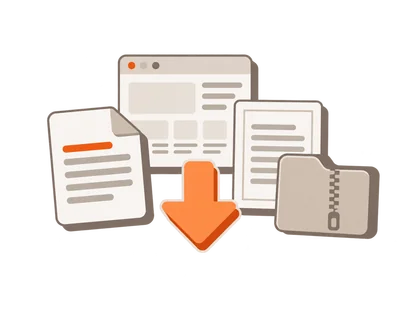
Every finished article can be downloaded as Word, HTML or PDF, or as a ZIP with the Markdown, the pictures and the sources, and publish it yourself.
- Word .docx
- HTML
- Full bundle .zip
Send it to your own code
BunnyCDN storage
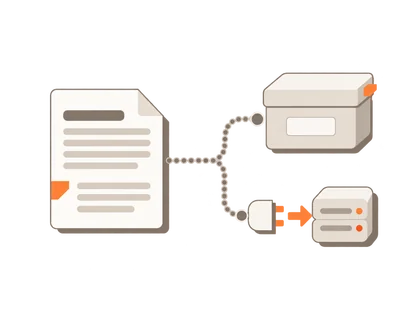
Each finished article is uploaded to your own BunnyCDN storage zone as Word, HTML, PDF or the ZIP, for your own import.
Signed webhook
Each finished article is sent as signed JSON to an HTTPS address you choose, for your own code to publish. A Zapier, Make or n8n webhook can take it too.
Questions about publishing
What do I need to try it?
Your website. Add it, approve its brief and download your first article. Connect a CMS whenever you like.
Can I edit an article?
Yes. Download a file and edit it in your own editor, or send it as a draft and edit it in your CMS.
How do Automatic publishing and Save as draft work together?
Automatic publishing decides when ThirdDraft sends an article. Publish or Save as draft decides what your CMS does with it.
Can I use ThirdDraft with another CMS?
Yes. Download the articles and publish them yourself, or have your developer take the signed webhook. Write to us to check your setup first.